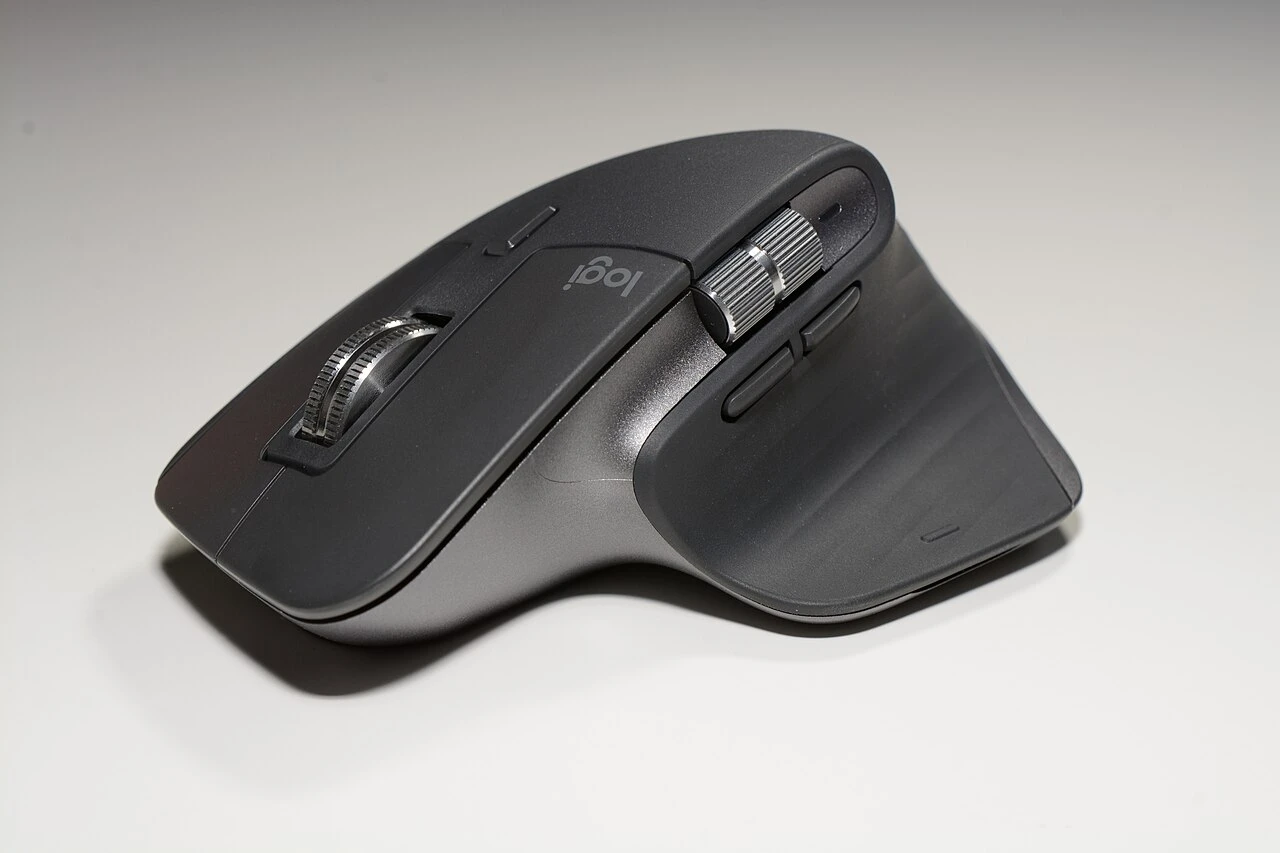
A mouse is a small object you can use for hours every day. The MX Master 3S focuses on that repeated interaction through its sculpted shape, thumb controls and scrolling system. The important question is whether those choices suit your hand and your computer, not whether you need another desk accessory.
At a glance
Our take
Worth considering for a right-handed desktop workflow that benefits from extra controls. Try the shape, and verify the exact edition and receiver bundle.
What we like
- Thumb controls and horizontal scrolling support desk work
- Quiet-click design suits shared rooms
- Software can tailor controls to a workflow
What to consider
- Sculpted right-handed shape will not suit everyone
- Advanced customization depends on compatible software
- Travel size and edition differences need consideration
Who is it for?
Right-handed home-office users who spend time in documents, spreadsheets or creative tools and can benefit from customized controls.
Fit comes before features
The tall body and thumb rest encourage a particular grip. That can feel reassuring in a stationary desk setup and cumbersome if you prefer a small, low-profile mouse. Compare the shape in person if possible, and make use of a retailer’s return policy when a hands-on fit check is unavailable.
The device is designed around right-handed use. Left-handed users and anyone who changes hands throughout the day should look at symmetrical alternatives. No sensor specification can compensate for a shape that feels wrong during the work you do most.
Scrolling is the strongest reason to upgrade
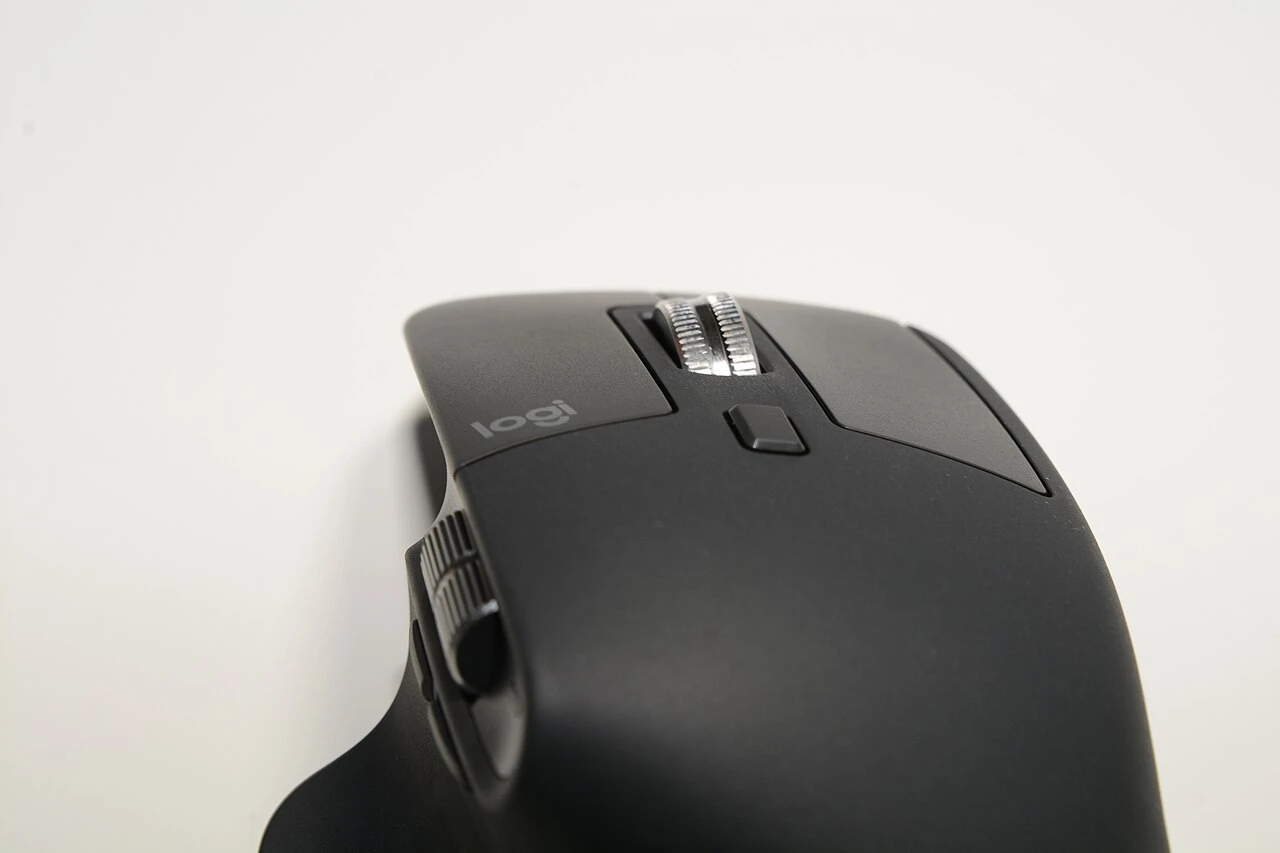
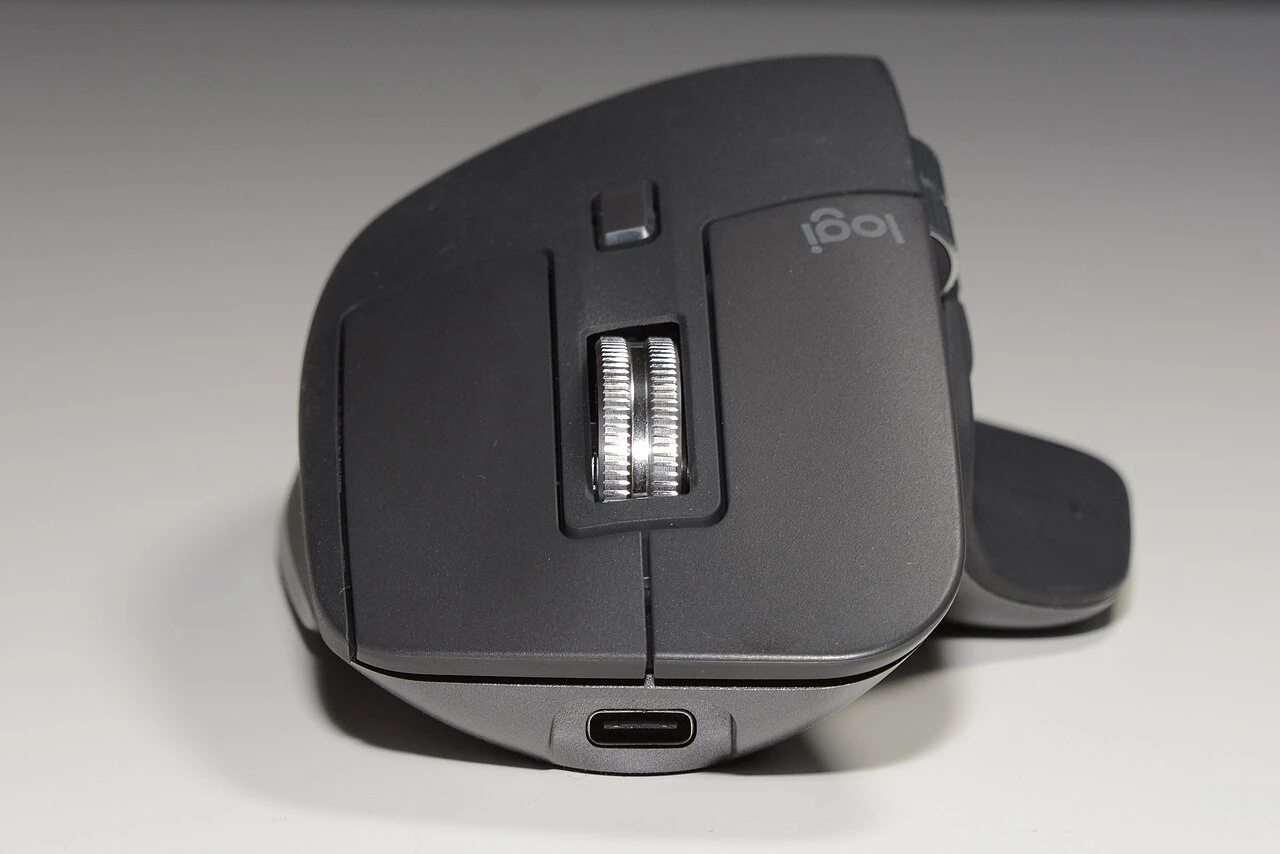
The primary wheel and thumb wheel are especially relevant to long documents and wide spreadsheets. Consider a task you repeat frequently: reviewing a long page, navigating a timeline or moving across columns. Extra controls have value when they reduce that recurring friction, not merely because they exist.
Logitech documents quiet clicks and an adjustable high-resolution sensor. Those are manufacturer features, not our measured performance results. Many everyday tasks do not need the highest tracking setting; select a comfortable speed and give yourself time to adapt before judging the change.
Check the edition and the computer
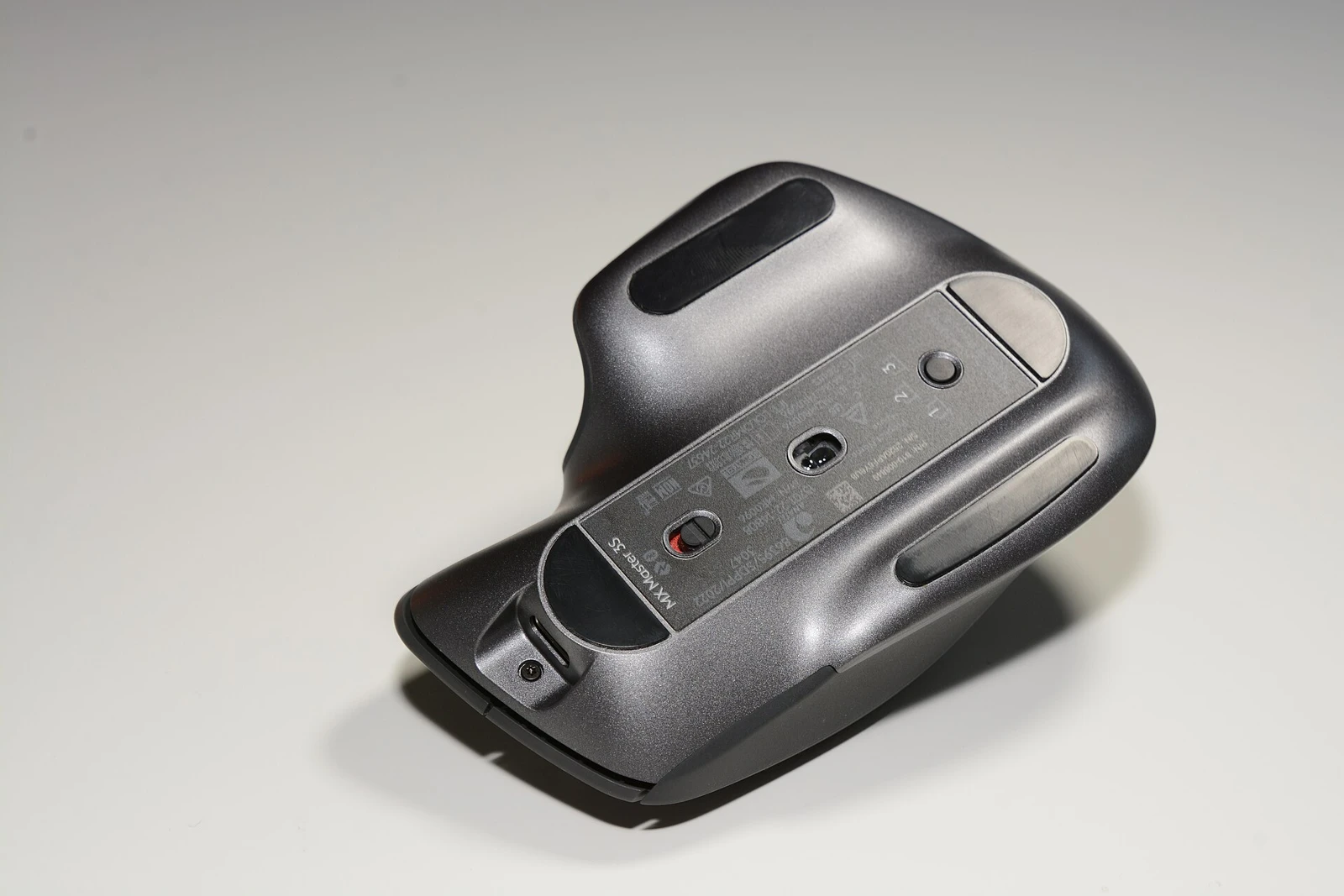
Product names and bundles can be confusing. The Bluetooth Edition, platform-specific versions and business packages may not include the same receiver or accessories. Read the listing rather than assuming a photograph of a USB receiver means one is in your box.
Customization through Logi Options+ depends on supported operating systems and installation permissions. If you use an employer-managed computer, check whether you can install the software before buying for a particular shortcut feature. Standard pointing and your intended advanced workflow are separate compatibility questions.
The everyday decision
Keep the desk setup comfortable as a whole: keyboard location, screen position and elbow support affect how a mouse feels. An expensive peripheral cannot fix a workspace that leaves you reaching awkwardly. Alternate tasks and take appropriate breaks rather than treating a product as a health intervention.
Choose the MX Master 3S when its shape and scrolling tools solve a real annoyance in your day. Keep a simpler mouse if you rarely use extra buttons or need something compact for travel. The best upgrade is one whose benefits you can describe in the context of your own work.
Sources & further reading
- Logitech: MX Master 3S features and edition information
- Logitech Options+ compatibility and customization
Sources reviewed for this article on October 18, 2026. Historical reviews describe older configurations; they do not establish current pricing, stock or support.
Image credits & licenses
- Logitech MX Master 3S HS05.jpg — Hayden Schiff. CC BY 4.0. Resized and converted to WebP; full composition retained.
- Logitech MX Master 3S HS11.jpg — Hayden Schiff. CC BY 4.0. Resized and converted to WebP; full composition retained.
- Logitech MX Master 3S HS13.jpg — Hayden Schiff. CC BY 4.0. Resized and converted to WebP; full composition retained.
- Logitech MX Master 3S HS19.jpg — Hayden Schiff. CC BY 4.0. Resized and converted to WebP; full composition retained.